User Guide
How StoryCoPilot works
From first login to a fully logged shoot.
Getting started
Log in with your email
Enter your email and we'll send you a 6-digit code. No password. Verify it and you're straight into the app.
You land on the Settings tab
Your starting point every session. Add your questions, set your AI mode, give the AI context, then switch to the Record tab. Everything else builds from there.
App layout
The app has five tabs accessible from the bottom navigation bar. Swipe left and right or tap the icons to move between them.
Questions (Settings)
Your prepared questions, editorial context, language selection, data privacy, offline mode, and appearance settings. Set everything up here before you record.
StoryCo
AI-generated follow-up suggestions appear here during recording. Switch between StoryCo suggestions and your own prepared questions with the toggle at the top.
Record
Choose your AI mode from the grid and tap Record to start. The app automatically switches to the Transcript tab once recording begins.
Transcript
Live transcription during recording with speaker labels, timecodes, and an audio level indicator. After recording, your full transcript lives here.
More
Library, StoryGrade, share to Dashboard, and session management. Access your past recordings and export tools here.
Settings tab
Add your prepared questions
Type your running order before you start. StoryCo tracks which you've covered and steers toward the ones you haven't.
Give the AI context
Use the context field to tell StoryCo who this person is and what you're trying to find out. The more specific, the better the suggestions.
Upload a brief or script
Drop in a shooting brief and StoryCoPilot will extract questions from it automatically.
Theme arrange
Tap Theme arrange to have the AI group your questions by topic. Save keeps your original order.
Privacy & offline settings
Sensitive Interview forces offline mode — zero data leaves your device. Offline Mode runs on-device transcription without internet. Both are toggle switches on this tab.
Dark mode
Toggle dark mode from the Appearance card on this tab, or from the Profile panel. Your preference is saved and persists between sessions.
StoryCo AI suggestions
Live follow-up suggestions
While you record, StoryCo listens and surfaces follow-up questions as carousel cards — based on what's being said and your editorial context.
Navigating cards
Swipe left and right through suggestions. Tap Asked or double-tap to dismiss. New cards appear as the conversation moves.
My Questions mode
Tap the StoryCo / My Questions label top-left to switch between AI suggestions and your own prepared list.
Recording
Allow microphone access
The first time you tap Record, your browser will ask for microphone permission. Tap Allow — StoryCoPilot needs this to transcribe. If you accidentally deny it, go to your browser settings and re-enable microphone access for this site.
Choose your AI mode
On the Record tab you'll see the AI mode grid. Select a mode before recording — this controls the style of follow-up questions StoryCo generates. The eight modes are: Story, Expert, Upbeat, Targeted, Chat, Challenge, Detail, and Emotion.
Tap Record
The record button on the Record tab. When you start recording, the app automatically switches to the Transcript tab where you'll see a live REC indicator, timecode, audio level bar, and a ripple visualisation that responds to your voice.
Recording controls
While recording, a controls dock appears at the bottom of the Transcript tab with three buttons:
Speaker — manually toggle between Speaker A and B when automatic detection isn't enough.
Stop — the red button stops the recording.
StoryCo — quickly generate a follow-up question from the last few lines of transcript.
Timecode sync
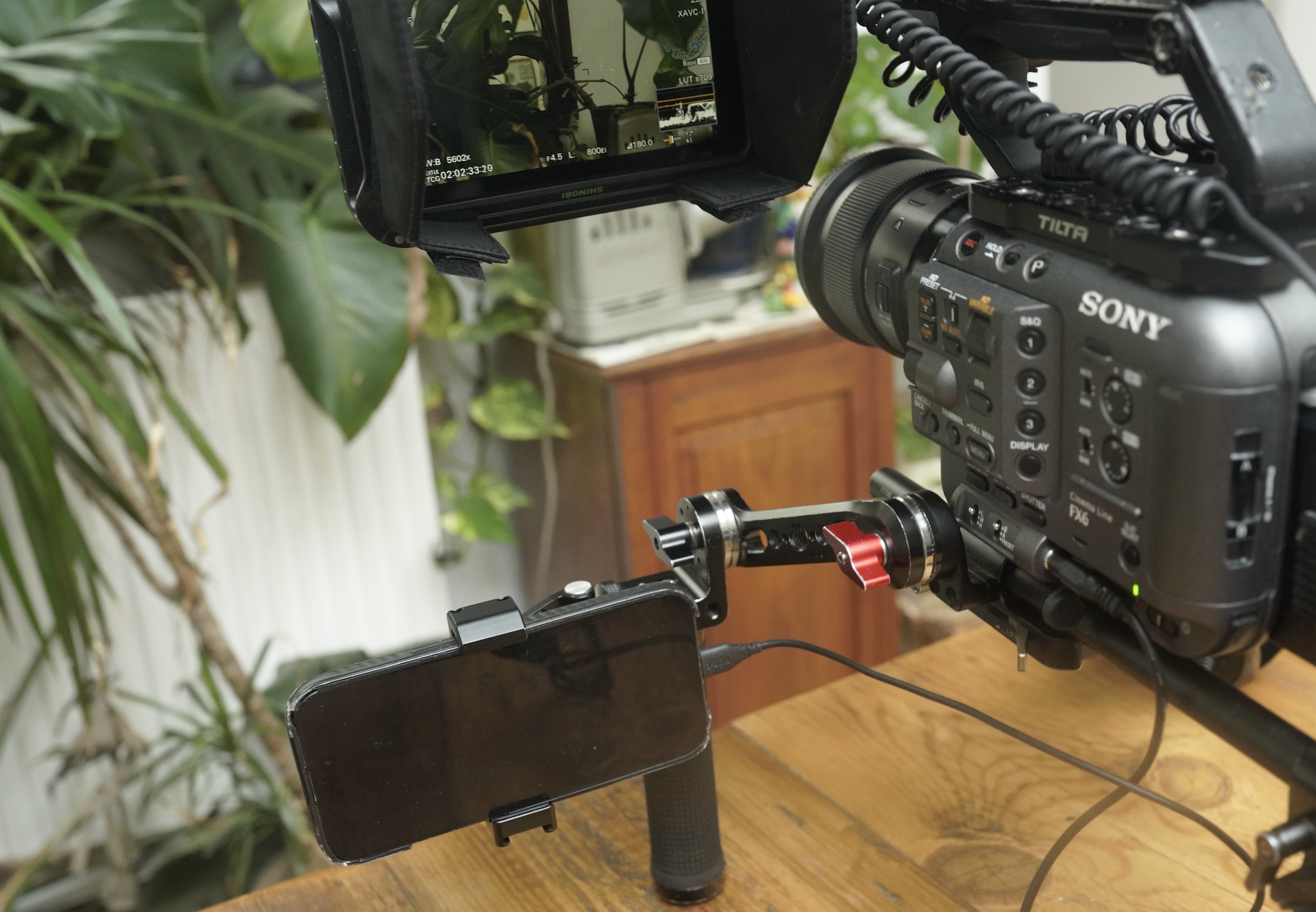
Sync timecode to your camera manually from the profile tab. Open the Timecode overlay for a live HH:MM:SS:FF clock at 25fps. Clap against camera for frame-accurate references at export.
After you stop
StoryCoPilot automatically generates a title and summary, then saves the session to your Library.
AI modes
Before you record, select your AI mode from the grid on the Record tab. This tells StoryCo what kind of suggestions to prioritise — the icon and accent colour of the app changes to match your selected mode.
Story
General purpose documentary mode. Balanced questions for any shoot — a good default if you're not sure where the conversation will go.
Expert
Use with experts, medics, scientists, or technical contributors. StoryCo simplifies jargon and builds questions step by step so viewers can follow.
Upbeat
Lighter tone, optimistic arc. Shapes questions toward uplift and resolution — ideal for popular factual and observational series.
Targeted
When you know what you want but can't ask directly. StoryCo circles toward a specific line or moment without tipping the contributor off.
Chat
Short, warm, conversational questions — feels like a chat rather than an interview. Good for contributors who clam up under pressure.
Challenge
Push back, probe, press. Surfaces questions that hold the contributor to account and draw out genuine conviction rather than rehearsed answers.
Detail
Step-by-step chronological detail. Unpacks exactly what happened, in sequence, and surfaces inconsistencies. Good for investigation and crime.
Emotion
Gently opens up a guarded or emotionally closed contributor. Questions are slower-paced and empathetic, building trust before going deeper.
Transcript
Live with speaker labels
Everything said appears in real time, labelled Speaker A / Speaker B. Tap a label to rename — names carry through to all your exports.
Timecodes on every line
Each line is timestamped as it's spoken. When you open StoryGrade, a second pass refines these automatically for frame-accurate clip references — so when you export to your NLE, in points and out points are precise.
Audio level & ripple
During recording, the transcript header shows a real-time audio level bar and a ripple visualisation that responds to your voice. A GOOD label confirms your audio level is strong enough for clean transcription.
Multi-language
Select your language before recording. The transcript reflects whatever language is spoken.
Library & sharing
All your sessions in one place
Every completed recording, grouped by date. Tap to open — full transcript, summary, and all sharing options. Swipe left to delete.
Productions
Organise by show
If you're working across multiple productions, use Productions (in the Library) to keep sessions separated. One production per show — all its sessions in one place, separate from everything else.
Session names
Name sessions so you can find them later. Contributor, location, date — no spaces, so it's searchable.
StoryGrade
Colour-coded paper edit
StoryGrade grades every transcript line A, B, or C. Tap any line to cycle grades manually.
A
Story gold — emotional, revealing, quotable
B
Solid — useful context
C
Filler — repetition, ums
Export to your NLE
Dashboard
Desktop review for your team
storycopilot.io/dashboard is a desktop-optimised view for editors and EPs. Full transcripts, summaries, and StoryGrade clips — without needing access to your phone.
Timecodes refined on share
When you share to Dashboard, a timecode refinement pass runs automatically so frame references are accurate before your editor sees them.